Forza Horizon 6 difficulty and assists: best settings to start
Where to change Drivatar difficulty and driving assists in Forza Horizon 6, which ones raise your credit payouts, a sensible starting setup and the accessibility options.
The short answer
Change difficulty from the main menu or by pausing and choosing Campaign, Settings, Difficulty. Drivatar difficulty and the main assists (braking, steering, traction and stability control, shifting) change your credit payouts; driving line, damage, rewind and launch control do not. A good start is Average Drivatars with anti-lock brakes and traction control on. You can change everything at any time.
- Where
- Pause, Campaign, Settings, Difficulty
- Change any time?
- Yes
- Affects credits
- Drivatar level, braking, steering, traction, stability, shifting (reported)
- No effect on credits
- Driving line, damage, rewind, launch control (reported)
- Starting point
- Average Drivatars, ABS and traction control on
- AI balance
- Adjusted in the June 15, 2026 update
Where are the difficulty settings?
Playground Games’ own starter guide tells you to set assists and accessibility in the Settings menu, and that every setting can be changed at any time.
According to GamesRadar+, the difficulty screen is reached two ways:
- Press X on the main menu, or
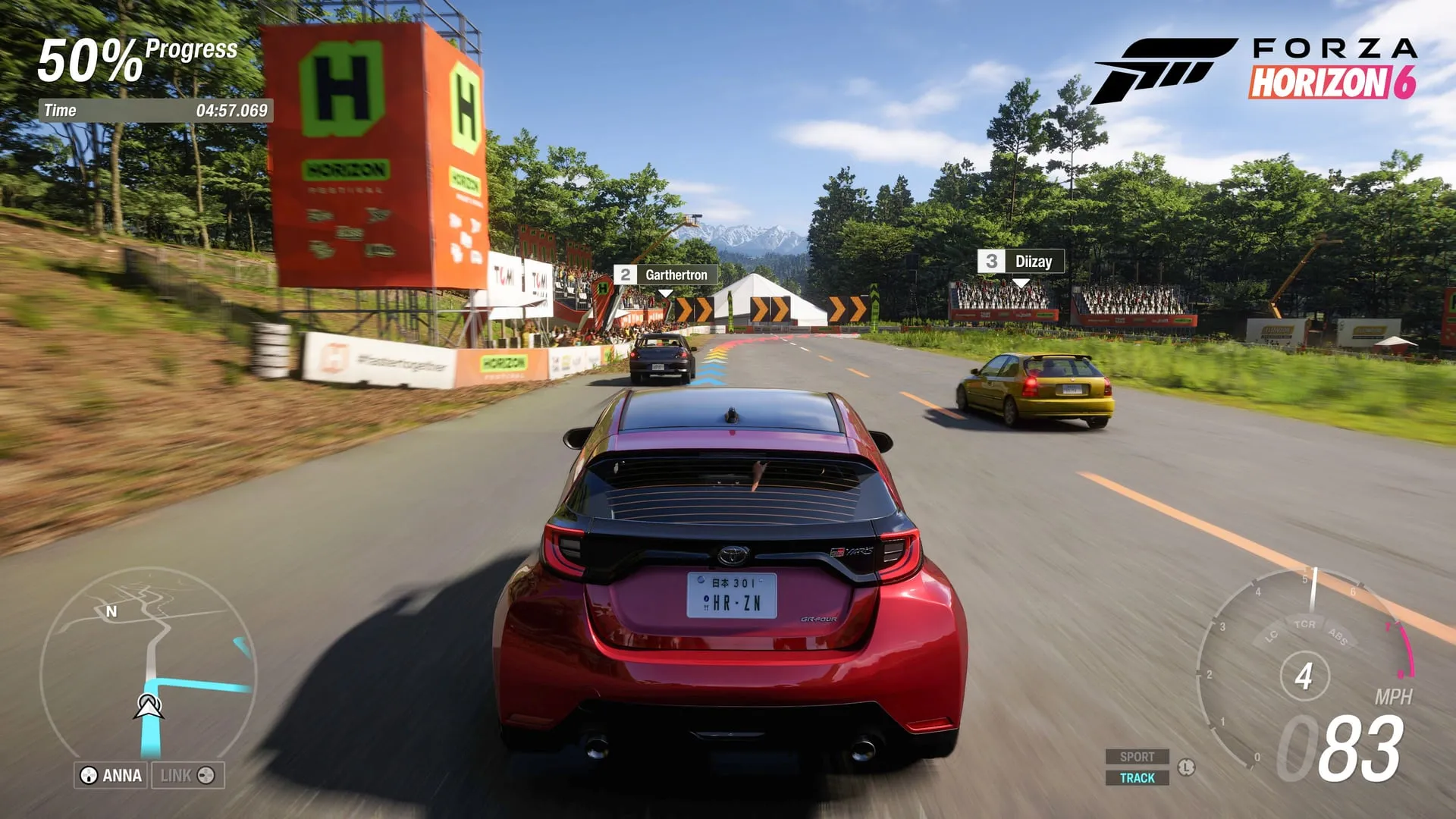
- Pause, open the Campaign tab, choose Settings, then Difficulty.
Which settings change your credit payouts?
Two groups, as reported by GamesRadar+ and Game Rant:
| Setting | Changes credit payout? |
|---|---|
| Drivatar difficulty | Yes, higher pays more |
| Braking (anti-lock on or off) | Yes |
| Steering | Yes |
| Traction control | Yes |
| Stability control | Yes |
| Shifting (automatic or manual) | Yes |
| Driving line | No |
| Damage and tire wear | No |
| Rewind | No |
| Launch control | No |
Game Rant puts numbers on some of them: turning off anti-lock braking adds 15%, turning off traction control or stability control adds 10% each, and manual shifting adds 15%. GamesRadar+ says its suggested setup below pays 25% extra. Playground Games has not published these figures, so treat them as reported, and check the difficulty bonus in your own game.
For every other way to earn credits, see how to make credits fast.
What is a good setup to start with?
This is the controller setup GamesRadar+ suggests, and it is a sensible start for most players:
| Setting | Choice |
|---|---|
| Drivatar difficulty | Average |
| Braking | Anti-lock on |
| Steering | Simulation |
| Traction control | On |
| Stability control | Off |
| Shifting | Automatic |
| Driving line | Full |
| Damage and tire wear | None or Cosmetic |
| Rewind | On |
| Launch control | On |
GamesRadar+ notes that if you keep winning, the game offers to raise the Drivatar level. When races feel easy, take one assist off at a time rather than all at once, so you can tell what each one changes.
If you are new to racing games, start lower than Average and keep the full driving line and rewind on, so one mistake does not cost you a race.
Are the Drivatars too hard?
At launch many players said so, especially on the higher levels. Playground Games acknowledged it three days after release, saying the AI was sometimes too fast to compete with, and its June 15, 2026 update brought “improvements to Drivatar difficulty balancing”.
Two more official changes are worth knowing:
- Since the City Life update on November 2, 2026, solo Seasonal Championships on the Festival Playlist use your chosen difficulty.
- In the Race Customizer, available once you have finished a Festival race, you choose the number of AI drivers (up to 11) and whether rewind is allowed for that event.
If a race still feels unfair, drop one Drivatar level.
Which other settings help?
GamesRadar+ also suggests:
- Camera: Chase Far, for a wider view of cars beside and behind you
- Time splits: on in every race, not only multiplayer
- Graphics mode on console: Performance, for 60fps
- Motion blur: Short or Off
What accessibility options are there?
Playground Games lists these:
- AutoDrive: set a waypoint on the map and let the car drive there; you start it through ANNA with the d-pad
- Car Proximity Radar: shows cars in your blind spots, with a choice of screen position and optional audio cues
- High Contrast mode, fully customizable
- Full controller remapping on all platforms
- Screen narration, subtitles, color-blind filters, and field-of-view options on PC
- Offline game speed adjustment
- American and British Sign Language in cinematics, added in the August 2026 update
For wheel and controller settings, see wheels and controllers.
Newsletter
Get new guides by email
One short email when new walkthroughs and guides go up. No spam, and you can unsubscribe from any email.
You'll get an email to confirm. Sign-ups are handled by Kit; see our privacy page.
Quick questions
How do I change the difficulty in Forza Horizon 6?
Press X on the main menu, or pause the game, open the Campaign tab, choose Settings and then Difficulty, according to GamesRadar+.
Does difficulty affect credits in Forza Horizon 6?
Yes. Outlets report that a higher Drivatar level and turning off certain assists raise your credit payouts. Cosmetic assists such as the driving line do not.
Are the AI drivers too fast?
Many players said so at launch, especially on the higher levels. Playground Games acknowledged it and released Drivatar difficulty balancing in its June 15, 2026 update. If races still feel unfair, drop a level.
How do I turn off car damage?
Set Damage and Tire Wear to None or Cosmetic in the difficulty settings. GamesRadar+ reports it does not change credit payouts.
Is there a setting that drives the car for me?
Yes. AutoDrive, an accessibility option, drives to a waypoint you set on the map. You start it through ANNA with the d-pad.
Sources
- Forza Horizon 6 FAQForza Support
- First Drive: A Forza Horizon 6 Starting GuideForza.net
- Thank You for Playing Forza Horizon 6!Forza.net
- Forza Horizon 6 Series 2 Release NotesForza.net
- Embrace the City Life in Forza Horizon 6Forza.net
- Best Forza Horizon 6 assists and settings for controllerGamesRadar+
- Best Methods to Get Credits in Forza Horizon 6Game Rant
More Forza Horizon 6 guides
- How long is Forza Horizon 6? Hours to beat and to 100%How long Forza Horizon 6 takes: about 25 to 30 hours to earn every Wristband by reviewers' counts, 50 hours or more for completionists, and what 'beating' it means.
- Forza Horizon 6 wristbands: all 7 and how to reach Legend IslandHow the Horizon Festival campaign works in Forza Horizon 6: qualifying, the seven wristbands from yellow to gold, wristband events and what Legend Island unlocks.
- Forza Horizon 6 Discover Japan: all 7 stamps and what they unlockDiscover Japan is Forza Horizon 6's exploration track. The seven stamps, what earns points fastest, and the Barn Finds, houses and Estate each stamp unlocks.

- Forza Horizon 6 editions compared: price and what each includesForza Horizon 6 Standard ($69.99), Deluxe ($99.99) and Premium ($119.99) compared: Car Pass, VIP, both expansions, early access and the $59.99 Premium Upgrade.